Connect flows
The plugin reaches your app through the bridge. There are three ways to connect, from fully local and account-free to a hosted team connection — pick the one that fits how you work.
1. Local (blank key)
The simplest path, and completely free with no account. A developer runs the bridge; the plugin points at it directly.
- A developer runs
sorb devon their machine. - In the plugin's Settings, set Bridge origin to the local origin (default
http://localhost:7777) and App URL to the dev server (defaulthttp://localhost:5173). - Open the Tokens tab and click Preview in app.
This is ideal for a developer working solo, or for anyone on an air-gapped or offline setup.
2. Handshake invite
To connect a designer without them touching URLs, a developer packs the whole connection into a single code:
sorb handshake --copy
This copies an invite that bundles the bridge origin, app URL, and key. The designer pastes it into the plugin and it configures itself — nothing else to provision.
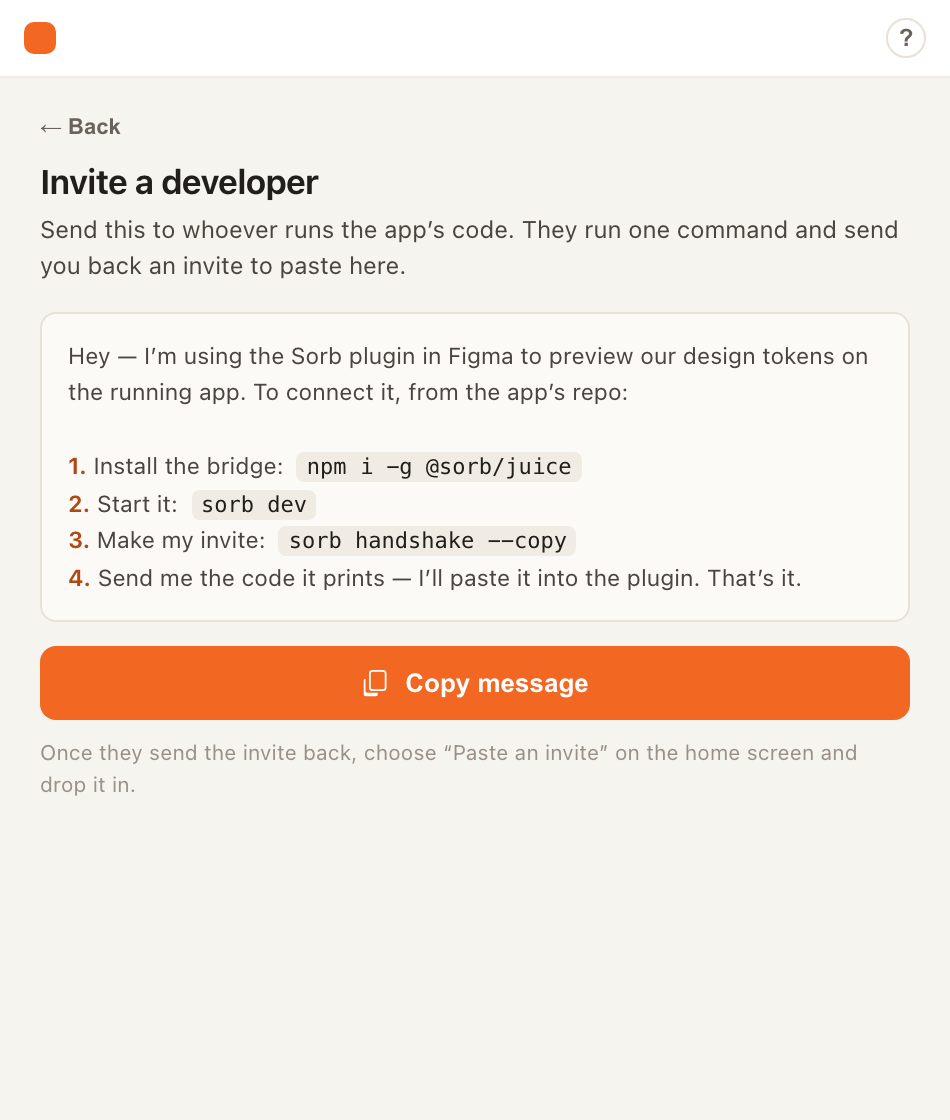
This "invite" is a technical connection handshake — it is not the same as a beta invite. The Sorb public beta is open to everyone with no invite required.
3. Organization key (hosted)
For a team on a hosted account, connect the plugin with your organization's publishable key — no one needs to run a local bridge.
- Sign up for the public beta and create an organization on
app.sorbcloud.com. - Copy your org publishable key (
sorb_pk_…) from the dashboard. - In the plugin's Settings, choose Connect with an org key and paste it. The plugin resolves the key against the hosted service and applies the returned bridge configuration.
This is the same mechanism the React SDK uses to connect, so the plugin and your app agree on one hosted bridge.
Which should I use?
| You are… | Use | |---|---| | A developer working solo | Local (blank key) | | A developer inviting a designer | Handshake invite | | A team with a hosted account | Organization key | | Offline / air-gapped | Local (blank key) |
Next
- Cloud & accounts — signing up and org keys.
- Settings View — where the connection fields live.
Works with Figma. Not affiliated with, or endorsed by, Figma. Figma is a trademark of Figma, Inc.